DiskInternals Partition Recovery Software
Helps with partition recovery when a Windows partition is:
- Lost
- Deleted
- Formatted
- RAW
- Inaccessible
- Corrupted
- Damaged
This disk partition recovery software scans readable storage without changing the affected source.
-
Three recovery depths in one wizardFull recovery rebuilds the file system inside the software, Fast recovery finds what is still on the surface, and Reader opens a readable disk directly.
-
Retrieves files, does not repair the partitionThis partition data recovery software retrieves files rather than repairing the partition in place — the source remains unchanged.
-
More than local Windows volumesScans connected Ext2/3/4 disks, supported virtual-disk and forensic containers, and remote Ext2/3/4 storage reached over SFTP.
Export only to a healthy destination that is physically separate from the affected disk and has enough free space.
Safe start
- Install the evaluation version on a healthy drive. Do not install it on the affected source or save recovered files back to that source.
- Install to a USB drive when no healthy internal disk is available. Running the software from removable media avoids writing to the affected disk entirely.
- Administrator rights are required. Raw sector access to physical drives is not available to a standard user account.
- Version
- 8.20
- Platform
- Windows desktop and Windows Server
- Privileges
- Administrator
- Install target
- Any healthy drive, including USB
Built on the DiskInternals Recovery Engine
DiskInternals has developed data-recovery software since 2004. Partition Recovery is not a standalone utility: it runs on the same engine used across the product line — read-only source access, virtual file-system reconstruction inside the application, and signature-based content analysis.
- Developing recovery software since
- 2004
- Source access
- Read-only
- Recovery depths
- 3
- File signatures
- 169
- File-system reconstruction
- Virtual, in-app
Each Product Contains the One Below It
The recovery products are layered rather than parallel. A higher-level product includes the complete functionality of every product beneath it and adds one further class of problem on top. Choosing a product means choosing the highest layer your case actually requires — nothing from the lower layers is lost.
- Layer 4VMFS Recovery
Adds VMware datastores: VMFS3 through VMFS6, ESX/ESXi storage, VMFS metadata, VMDK descriptor and snapshot-chain problems.
- Layer 3RAID Recovery
Adds reconstruction of the array itself: unknown parameters, missing member order, a failed controller, unavailable member disks, an interrupted rebuild.
- Layer 2Partition Recoverythis product
Adds the partition layer: lost, deleted, formatted, RAW, inaccessible, corrupted, and damaged partitions; partition-table, MBR, GPT, and boot-sector analysis; ReFS and Ext2/3/4 sources; disk images; remote Ext2/3/4 over SFTP.
- Layer 1Uneraser
Base deleted-file recovery on a file system that Windows can still read. Available inside Partition Recovery as the Fast recovery depth.
If the affected volume lives inside a VMware datastore or a failed array, start one layer higher. Everything Partition Recovery does is already included there.
Two Ways to Work With It
Partition Recovery Scenarios
A partition is an area of a storage device that Windows normally presents as a drive. The software may help you recover files from it when Windows can no longer open it, provided the source remains readable.
All scenarios below use read-only scanning: recoverable structures are reconstructed virtually, supported files can be previewed before purchase, and licensed export goes to a healthy destination separate from the affected disk. Available scenario guides are linked below.
Lost or deleted partitions
- In Windows
- The expected drive has disappeared from File Explorer, or Disk Management no longer shows the partition.
- Partition Recovery
- Scans a readable device for remaining partition and file-system structures without rewriting the source.
Detailed instructions: Recover a Lost or Deleted Partition
Formatted partitions
- In Windows
- The partition appears empty, has a new file system, or no longer contains the expected folders after formatting.
- Partition Recovery
- Searches for recoverable NTFS or FAT structures and file information that may remain.
Detailed instructions: Recover Files After Formatting
RAW or inaccessible partitions
- In Windows
- Windows reports RAW, denies access, or asks you to format the drive.
- Partition Recovery
- Searches the readable source for recoverable file-system structures without accepting the format prompt.
Detailed instructions: What to Do When a Partition Appears RAW
Damaged partition structures
- In Windows
- Folders cannot be opened, files are missing, or Windows reports errors while accessing the volume.
- Partition Recovery
- Analyzes available metadata and readable sectors and builds a virtual recovery result.
Detailed instructions: Recover a Damaged or Corrupted Partition
Unallocated or missing space
- In Windows
- Disk Management shows unallocated space where a partition used to be, or the expected volume is absent.
- Partition Recovery
- Searches the readable disk for traces of previous partitions and file systems.
Detailed instructions: Recover Files from a Missing Partition on Unallocated Space
In every scenario you can review found partitions and folders and preview supported files before purchase; licensed export goes to the prepared safe destination. Recovery results depend on what remains readable and has not been overwritten.
Scan and Preview Recoverable Files for Free

The evaluation version lets you examine the recovery result before paying. It's not a completely free export solution.
When a License Is Required to Export Files
Everything up to and including preview is free. A paid license is required at one single point: when you save or export recovered files. After entering a valid license key you do not need to reinstall the software or scan the source again, and registered users can save files of any size.
- Scan the source at any recovery depth
- Review found partitions and folders
- Preview supported documents, images, video, and audio
- Save or export recovered files
- Mount the result as a virtual drive in Explorer
- Export to a network disk, or FTP
| Edition | Intended use |
|---|---|
| Personal | Recovering your own data on your own computers. One user, non-commercial use. |
| Technician | Recovering data on client or third-party devices. One technician, unlimited devices, commercial service use permitted. |
| Enterprise | Deployment inside one organization: multiple technicians, servers, and Windows Server systems, with priority support. |
If you recover data for clients, choose Technician or Enterprise — a Personal license does not cover commercial service work. Full entitlements and pricing are on the order page.
View PricingFrom $59.95 139.95
What You Can Do Before Purchase
If you need free partition recovery software to assess the source before paying, the DiskInternals evaluation version lets you scan a supported source, display found partitions, folders, and files, and preview supported recoverable files before purchase. A paid license is required to save or export the result.
- select a supported source or disk image;
- scan the affected storage;
- review found partitions;
- browse reconstructed folders and files;
- preview supported office documents;
- preview common image formats;
- play supported video files;
- check whether the files you need are present and readable.
A successful preview confirms the condition of the specific file you opened. It does not prove that every file on the source is complete or recoverable. Preview several representative files from the folders that matter most.
Search for Recoverable Files by File Signature
When folder metadata, file names, or directory records are no longer usable, signature-based search can identify file content by its internal structure. DiskInternals supports 169 file signatures across archives, graphics, video, audio, office documents, CAD files, databases, and other common data types.
Preview Supported File Formats Before Recovery
Signature support and preview support are different capabilities. Signature search helps locate file content; Preview opens a supported file so you can inspect that specific result before export. Preview covers common office documents and image formats, and includes built-in playback for supported video and audio files.
You can download partition recovery software to a healthy drive and begin the review without payment.
Installation note: Download and install the software on a healthy drive — a USB drive is acceptable — never on the affected source. Administrator rights are required for raw access to physical drives.
How DiskInternals Protects the Source Drive
The recovery architecture separates the affected source, the virtual recovery result, and the export destination — this keeps the original storage unchanged by the software.

The Source Drive Is Never Modified
The source is the affected disk, partition, memory card, external drive, supported image, or other readable storage being scanned. The software uses read-only source access to analyze available partition, file-system, folder, and file data without writing changes.
- format or initialize the source;
- create, delete, resize, or rewrite partitions;
- repair or rewrite the real partition table;
- rewrite the MBR or boot sector;
- rewrite the real file system;
- place reconstructed data back on the source;
- save recovered files to the affected source.
This protects the source from software-induced modification. It cannot prevent an already failing device from deteriorating while it is being read.
The File System Is Reconstructed Virtually
The software performs virtual file-system reconstruction inside the application. It uses structures and data that remain readable to build a browsable recovery result without changing the real file system.
You can inspect found partitions, browse folders, and preview supported files in this virtual reconstruction. Nothing is written back to the source.
A disk, external drive, memory card, or supported image is scanned without formatting, repairing, repartitioning, or writing changes.
Recoverable partition and file-system structures are reconstructed inside DiskInternals for browsing and supported file preview.
Selected files are saved to a healthy, physically separate device or supported remote destination with enough free space after licensing.
Browse and Copy from a Virtual Drive
After licensing, the software mounts all recovered folders and files as a virtual drive in Windows Explorer. Browse it like any regular disk and copy files to any safe location.
- another healthy physical disk;
- a healthy external drive;
- a network disk visible to Windows;
- FTP storage.
The destination must be physically separate from the affected disk and have enough free space.
Another partition on the same affected physical disk is not a safe destination, even if it has enough free space.
Safety Rules Before You Start
- Stop normal use of the affected disk or device.
- Do not format, initialize, or repartition it.
- Do not run CHKDSK or another write-capable repair tool.
- Do not install software or copy new files to the affected source.
- Do not save recovered files back to the affected source or to another partition on the same physical disk.
- Prepare a healthy destination that is physically separate from the affected disk and has enough free space.
Stop software attempts and contact a data-recovery specialist when the source clicks, grinds, repeatedly disconnects, disappears from BIOS or Windows, overheats severely, or develops rapidly increasing read errors. Read-only software does not modify the source, but physically failing hardware can deteriorate while being read.
How DiskInternals Partition Recovery Works
Follow the recovery wizard step by step. The affected source is scanned without being repaired or rewritten in place; the application builds a virtual recovery result, then saves selected files to a separate healthy destination after licensing.
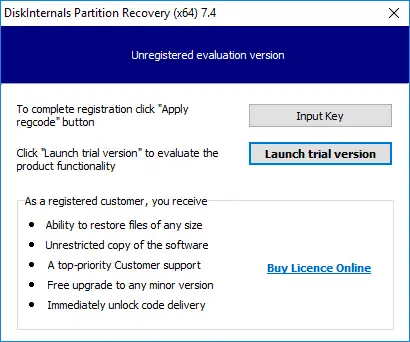
Download and Run the Trial Version
Download and run the trial version of DiskInternals Partition Recovery. Install it on a healthy drive, not on the affected source, so the installation does not overwrite data that may still be recoverable.
Let the Recovery Wizard Start
The recovery wizard starts automatically and guides you through choosing the source, selecting a recovery mode, scanning, reviewing files, and saving the result.
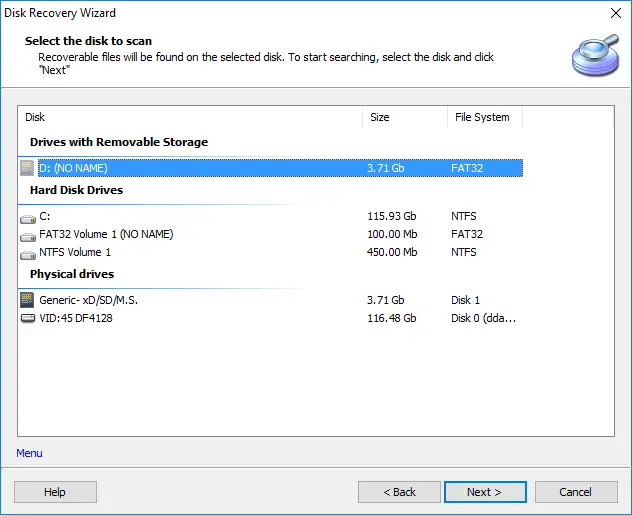
Select the Physical Drive and Recovery Mode
Select the affected disk in Physical Drives. This is the source from which data will be recovered; it is not the healthy destination where recovered files will be saved. Then choose one of the three recovery modes below. For an inaccessible, erased, broken, lost, deleted, or corrupted partition, select Full recovery and click Next.
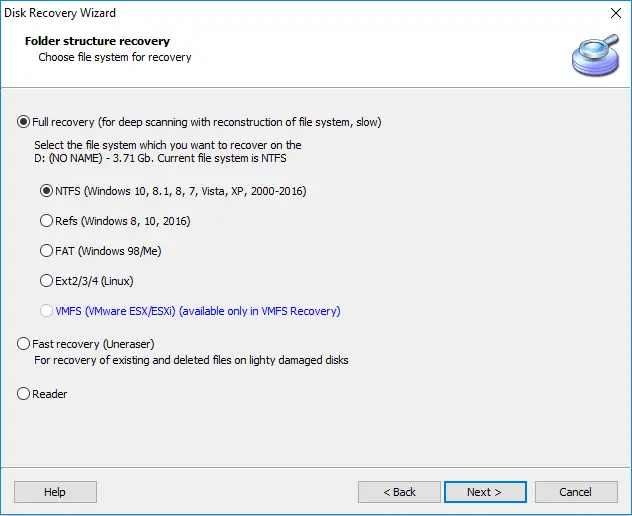
| Recovery mode | What happens |
|---|---|
| Full recoveryDeep scan with file-system reconstruction — slow | Deeply scans every disk sector for retrievable data and rebuilds the file system only inside the software; the real file system remains unchanged. It takes longer, but can recover files from inaccessible, erased, broken, lost, deleted, or corrupted partitions. |
| Fast recoverySurface scan — fast | Takes less time and finds files from an inaccessible, erased, broken, lost, deleted, or corrupted partition that are still “on the surface.” It does not perform deep scanning or rebuild the logical disk’s file system. |
| ReaderDirect access — no scan | Lets you open disks in File Explorer. Use it when a disk is unreadable in Windows or when an internal or external disk comes from a Mac OS or Linux computer. |
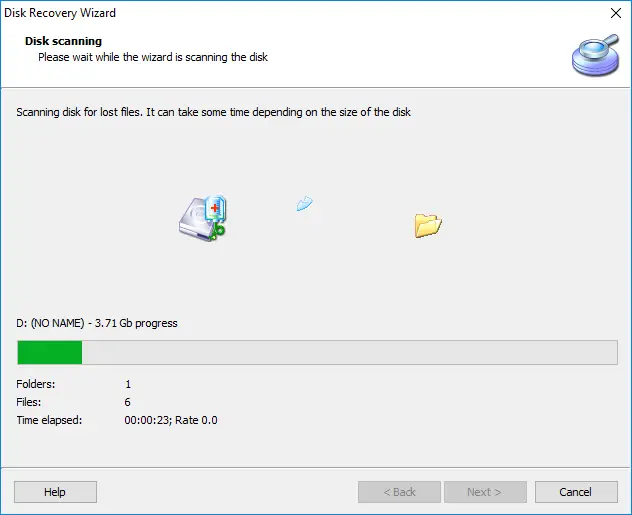
Wait for the Scan to Finish
Start the scan and wait for the process to be completed. The software reads the selected source and searches for recoverable partition, file-system, folder, and file information; it does not repair or rewrite the original partition.
Full recovery reads every sector, so scan time scales with the capacity and read speed of the device — not with the number of files on it. On a large or slow source it is normal for the scan to run for hours; the level of damage, the connection type, and the number of read errors extend it further. Fast recovery finishes considerably sooner because it does not read the whole surface.
Plan for an uninterrupted run rather than watching the progress bar. The scan result stays available in the application afterwards, and can be saved as a recovery snapshot so the source does not have to be read a second time. Stop if the source repeatedly disconnects or shows signs of physical failure.
Preview and Recover the Files You Need
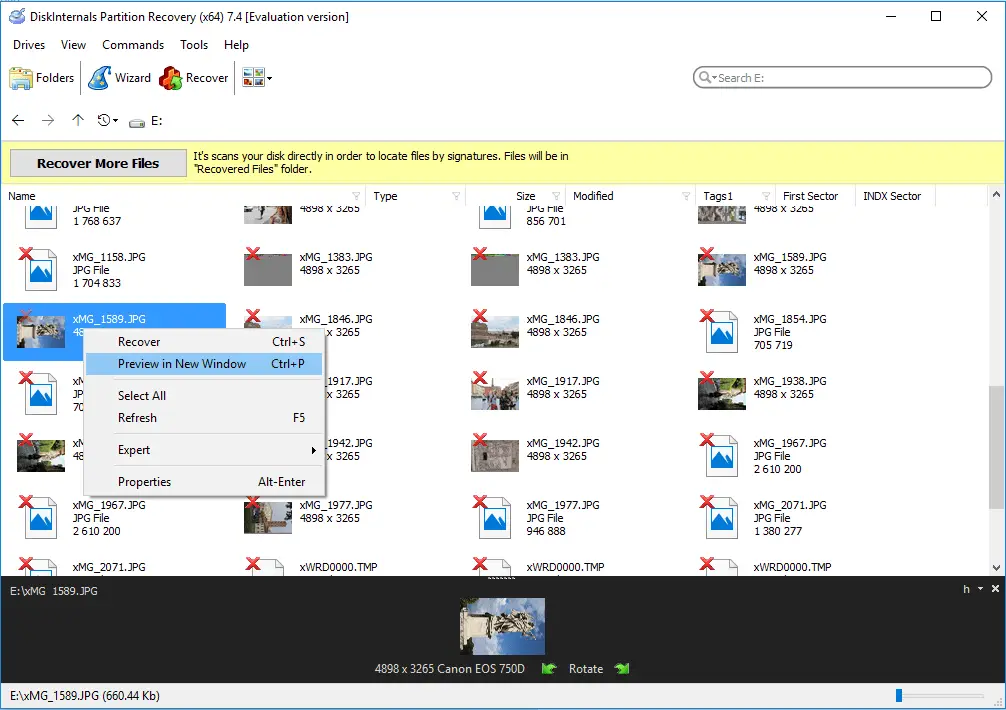
When the scan is complete, browse the reconstructed folder structure. It exists only inside the application and does not change the real file system. Recoverable files are marked with a red cross in the upper-left corner.
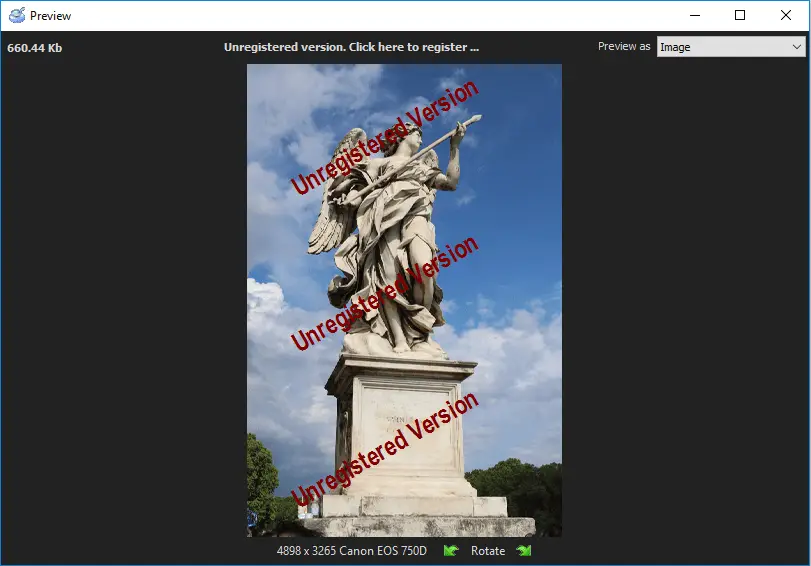
Right-click a file and select “Preview in New Window” to check it before making a purchase decision. After reviewing the file, select it and use the Recovery button to restore it.
Enter the License Key and Save to a Separate Destination
Purchase a license and enter the license key in the appropriate field. No rescan or reinstallation is required because the scan result remains available in the application. Select a healthy location that is physically separate from the affected source, then click Save.
Never save recovered files to the affected source or to another partition on the same physical disk.
Partition Recovery Software for Windows
Use Windows partition recovery when the affected source remains readable by the software, even if Windows does not show the volume normally in File Explorer.
Supported Windows Versions
| Supported versions |
|---|
| Desktop versions: Windows XP, Windows 7, Windows 8, Windows 10, Windows 11 |
| Server versions: Windows Server 2008, 2012, 2016, 2019, 2022, 2025 |
When a Partition Is Missing in Windows
- the partition is absent from File Explorer;
- Disk Management shows unallocated space;
- the volume has no drive letter;
- Windows reports a RAW file system;
- Windows asks to format the drive before use.
Do not accept a format prompt while you still need data from the source. Select the correct readable source in DiskInternals and scan it without writing changes.
Linux and macOS Disks, Servers, and Remote Sources
The application is a Windows program, but the source does not have to be a Windows disk. A drive pulled from a Linux machine, a Mac, a server, or a NAS can be recovered from a Windows workstation — and when the disk cannot be moved, the source can be reached over the network instead.
Ext2/3/4 Disks Connected to Windows
Partition Recovery scans Ext2, Ext3, and Ext4 storage connected to the computer at full depth — Full recovery, Fast recovery, and Reader are all available for Ext. The source can come from a Linux system, a macOS system, a server, a NAS, or any other device using a supported Ext file system, and Windows does not need to mount the volume.
Remote Ext2/3/4 Sources over SFTP
When the disk cannot be removed from the machine, connect to the host through SFTP and select the exposed Ext2/3/4 source inside Partition Recovery. The recovery result is built locally. The remote host can run Linux, macOS, or another operating system, as long as it provides SFTP access to the storage. See Remote Ext2/3/4 recovery over SFTP.
macOS File Systems: APFS and HFS
APFS, encrypted APFS, and HFS volumes are read at Reader depth, which is enough to open the volume and copy files off it when the structure is intact. Deeper reconstruction depths are not offered for these file systems — see the support matrix.
Running the Application on Linux or macOS via Wine
The Windows application can also be installed and run on Linux or macOS through Wine, which is useful when no Windows machine is available. This is a compatibility-layer workflow rather than a separate native edition; the same read-only recovery and separate-destination rules still apply.
Reading an Intact Ext or ReFS Volume Without Recovery
If the volume is intact and you only need to copy files from it, recovery software is not required. The free DiskInternals Linux Reader opens supported Ext and ReFS volumes in read-only mode and saves files to a Windows drive.
Supported Storage Devices
Supported sources include readable physical storage, removable media, disk images, and logical sources. Device support does not override the physical-failure stop conditions described above.
Hard Drive and HDD Partition Recovery
Readable internal and enterprise disks are supported across common interfaces. For hard drive partition recovery, the software can scan:
- SATA HDDs
- SAS HDDs
- IDE / PATA HDDs
- SCSI HDDs.
Legacy and vintage media may also be processed when readable:
- floppy disks
- Zip disks
- Jaz disks
- CompactFlash cards
- SmartMedia cards
- xD cards.
SSD Partition Recovery
The software also supports readable solid-state storage. SSD partition recovery is available for:
- NVMe SSDs
- M.2 SSDs
- PCIe SSDs
- SATA SSDs
- enterprise SSDs
Avoid further writes to the affected SSD. Recovery still depends on what data remains readable and has not been overwritten or otherwise made unavailable.
External Hard Drive, USB, and Memory Card Recovery
External hard drive partition recovery applies to readable external HDDs and portable hard drives. USB partition recovery applies to USB-C drives, USB flash drives, and pen drives. SD card partition recovery applies to supported SD, MicroSD, camera, drone, and dashcam media.
Supported removable sources include:
- external SSDs and external HDDs
- portable hard drives
- USB-C and Thunderbolt drives
- USB flash drives and pen drives
- SDHC, SDXC, and SDUC cards
- MicroSD, MicroSDHC, and MicroSDXC cards
- CFexpress Type A and Type B cards
- CFast cards
- drone memory cards
- dashcam memory cards
Disk Image Containers and Logical Source Recovery
Partition Recovery opens supported virtual-disk and forensic-image containers as sources, then applies the recovery modes available for the file system found inside the container.
Supported containers include:
- VMDK (VMware)
- VHD
- VHDX
- VDI (VirtualBox)
- HDS (Parallels)
- DI_SPARSE
- QCOW2
- EnCase
- ProDiscover
The software may also work with readable logical sources exposed from:
- RAID 0
- RAID 1
- RAID 5
- RAID 10
- JBOD
- Windows Dynamic Disks
- NAS storage drives
- SAN storage drives
For an inaccessible, damaged, deleted, or unrecognized VMware VMFS datastore, use DiskInternals VMFS Recovery. When a failed RAID array itself must be reconstructed, use DiskInternals RAID Recovery.
Partition recovery on every supported device remains subject to the same read-only workflow and physical-failure stop conditions.
Supported File Systems and Partition Structures
A file system defines how files and folders are organized on a partition. A partition table records where partitions are located on a physical disk. DiskInternals Partition Recovery contains NTFS Recovery and FAT Recovery software and includes three wizards: Partition Recovery Wizard, NTFS Recovery Wizard, and FAT Recovery Wizard.
NTFS, FAT, ReFS, and Linux Ext Advanced Recovery
File-system support has three distinct depths, and they are not available for every file system. Full recovery performs a sector-by-sector scan, collects surviving structures and file fragments, analyzes the evidence, and builds a virtual folder tree. Fast recovery tolerates deleted-file flags and certain damaged records so it can continue searching beyond errors that stop ordinary reading. Reader follows the available file-system structure much like the host operating system and may stop when a critical structural error blocks normal traversal.
- Full recovery
- Deep sector-level analysis followed by virtual reconstruction of the recoverable tree. Slowest, and the only depth that rebuilds the file system.
- Fast recovery
- Error-tolerant surface search that can continue past deletion markers and some damaged records, without rebuilding the file system.
- Reader
- Direct file-system reading for intact or mostly readable structures, opened through File Explorer.
| File-system group | Full recovery | Fast recovery | Reader |
|---|---|---|---|
| NTFS | Yes | Yes | Yes |
| FAT | Yes | Yes | Yes |
| exFAT | — | Yes | Yes |
| ReFS | Yes | Yes | Yes |
| Ext2/3/4 | Yes | Yes | Yes |
| UFS, HFS, ReiserFS, Reiser4 | — | Yes | Yes |
| XFS, ZFS | — | Yes | Yes |
| APFS, encrypted APFS | — | — | Yes |
| Btrfs, RomFS | — | — | Yes |
“Yes” identifies the depths available for that file-system group; “—” means that depth is not offered for it, not that the file system is unsupported. Every group is readable at Reader depth. The result still depends on source readability, remaining metadata, and whether file content has been overwritten.
ReFS and Ext Partition Recovery
ReFS and Ext partitions are supported as readable sources. When a disk formatted with ReFS, Ext2, Ext3, or Ext4 is connected to your Windows computer, the software can scan that partition and recover files from it, even when Windows does not open the volume normally. The workflow is the same: the result is reconstructed inside the application, supported files can be previewed before purchase, and licensed export goes to a separate healthy destination.
If such a partition is intact and you only need to read or copy files from it, recovery software is not required. Use the free DiskInternals Linux Reader instead: it opens supported ReFS and Ext volumes in read-only mode and lets you save files to a Windows drive.
NTFS Partition Recovery
The product includes an NTFS Recovery wizard and can handle partition-specific NTFS scenarios. It searches for recoverable NTFS structures and reconstructs the result virtually rather than rewriting the original file system.
For broader NTFS file-system recovery, see DiskInternals NTFS Recovery.
FAT and FAT32 Partition Recovery
The product includes a FAT Recovery wizard and supports FAT12, FAT16, FAT32, and VFAT. FAT32 partition recovery searches readable storage for remaining FAT structures and file information without writing repaired structures to the source.
Partition Table Scenarios: MBR, GPT, and EFI
Both partition-table layouts are fully supported. On an MBR disk the software analyzes the master boot record together with the primary and extended partition entries. On a GPT disk it analyzes the GUID partition table — the protective MBR, the GPT header and entry array, the EFI System Partition, and the backup GPT copy at the end of the disk when the primary header is unusable. Partition table recovery and MBR recovery involve finding and using remaining structural information to build a virtual result inside the application. The software may also analyze boot-sector data when searching for recoverable partitions and files.
These processes do not rewrite the real partition table, MBR, GPT header, boot sector, or file system. Files are previewed in the virtual reconstruction and exported to another safe destination after licensing.
- Sector format
- 512n, 512e, and 4Kn
- Sector size
- No limit
- Disk capacity
- No limit
- Partition layout
- MBR, GPT, EFI
Encrypted Data Is Out of Scope: BitLocker and EFS
Partition Recovery does not work with encrypted data. It cannot unlock a BitLocker-protected volume and it cannot decrypt EFS-encrypted files. Encryption is a different problem from partition damage, and recovery software cannot substitute for a missing key: a BitLocker volume may be perfectly intact and simply locked. Do not treat either condition as file-system corruption, and do not format the volume.
- EFS-encrypted files — DiskInternals EFS Recovery is a separate product built for Encrypting File System data.
- BitLocker-encrypted drive — follow How to recover a BitLocker-encrypted drive.
Advanced Product Capabilities
The standard workflow is suitable for most users; advanced capabilities are available for supported technical cases.
Remote Ext2/3/4 Recovery over SFTP
SFTP is a source-level connection: Partition Recovery reads the remote storage through the encrypted connection and builds the recovery result locally. The operating system of the remote host is not the limiting factor; it must expose the relevant storage through SFTP.
Manual Mode for Mapping a Virtual Partition
Manual Mode is intended for an experienced user who can identify the probable start and end sectors of a partition. The selected sector range is mapped as a virtual partition inside the application so it can be inspected without rewriting the real partition table.
The mapping changes the recovery view, not the source disk. Export recovered files to another healthy physical device.
Recover Files When the Partition Table Is Missing
A missing partition table does not always mean that every partition structure and file has disappeared. If enough boundaries and file-system records remain readable, Partition Recovery can identify candidate partitions and expose their contents through a virtual result.
- Scan the physical sourceSearch for remaining partition boundaries and file-system structures.
- Review candidate partitionsCompare size, position, file system, folders, and representative files.
- Map or open the result virtuallyUse the appropriate Full recovery, Fast recovery, Reader, or Manual Mode workflow.
- Copy important files elsewhereDo not rewrite the real partition table before the required data has been recovered and verified.
Disk Images and Virtual Partitions
Supported disk images, recovery snapshots, and user-defined virtual partitions can be processed like regular sources inside the application. Recovered folders can also be opened as a virtual drive in Windows for familiar browsing and copying.
- 01Disk images and recovery snapshots
- The software can create disk images and work with recovery snapshot files for logical drives. A supported virtual partition can be processed like a regular disk. Working from an image can reduce repeated access to the original source, but creating an image still requires reading the device and may not be appropriate for physically unstable hardware.
- 02RAID, Dynamic Disks, NAS, and SAN
- Native support is available for approved RAID levels and Windows Dynamic Disks when they are exposed as readable sources. Partition Recovery is not a replacement for RAID Recovery when the array itself must be reconstructed, its parameters are unknown, member order is missing, a controller has failed, member disks are unavailable, or a rebuild was interrupted.
- 03Virtual-disk and forensic containers
- Supported containers include VMDK (VMware), VHD, VHDX, VDI (VirtualBox), HDS (Parallels), DI_SPARSE, QCOW2, EnCase, and ProDiscover. The container is opened as a source, and the available recovery depths are determined by the supported file system inside it. For VMFS3 through VMFS6, ESX/ESXi storage, VMFS metadata, or VMDK descriptor and snapshot-chain problems inside a VMware datastore, use VMFS Recovery.
- 04Network and remote export
- Recovered files can be saved to a network disk visible to Windows or exported through FTP. FTP Export supports regular FTP servers and FTP-accessible destinations, including NAS devices and servers running Windows, macOS, or Linux. Export to a virtual disk is also available where applicable.
Product Scan and Export Troubleshooting
This section covers software behavior during scanning, preview, and export. To diagnose a specific partition problem — a missing, formatted, RAW, or inaccessible volume — use the matching guide above.
Scan is extremely slow or stalls
Expected files are missing
Preview works but an exported file is damaged
Source disconnects or makes unusual sounds
Detailed Partition Recovery Guides
Use these problem-led guides for detailed instructions. They support the product page and don't represent separate recovery products.
Learn what to do when a partition disappears or is deleted and how to scan the source without rewriting the partition table.
Protect formatted storage from new writes, run the appropriate scan, preview files, and export them safely.
Understand why Windows may show RAW or ask to format the drive, and examine the source without accepting that format request.
Identify plausible partition candidates, preview representative files, and export verified results without rewriting the source.
Product Questions and Licensing FAQ
-
Partition recovery software scans readable storage for recoverable partition, file-system, folder, and file information. DiskInternals reconstructs the available structures virtually, lets you preview supported files, and exports selected files elsewhere after licensing.
-
No. DiskInternals Partition Recovery accesses the source in read-only mode and does not format, initialize, repartition, repair, or write reconstructed data to it.
-
Fully non-destructive recovery protects the source from software-induced modification. The recovery result is created inside the application, and selected files are exported to another healthy destination instead of being written back to the affected storage.
-
Yes. Both scenarios are supported while the source remains readable, and the result depends on what has not been overwritten. For the full procedure, see Recover a Lost or Deleted Partition or Recover Files After Formatting.
-
Yes, when the source remains readable by software. Cancel the Windows format prompt first; the step-by-step procedure is in What to Do When a Partition Appears RAW.
-
Yes. The product supports the listed NTFS and FAT families and includes NTFS Recovery and FAT Recovery wizards for partition-specific scenarios.
-
The trial version is free to download and can scan supported sources, display found structures, and preview supported files. A paid license is required to save or export recovered files.
-
A Personal license covers your own data on your own computers. Recovering data on client or third-party devices is commercial service work and requires a Technician or Enterprise license. Entitlements and prices are confirmed on the order page.
-
Full recovery reads every sector and rebuilds the file system inside the software — slowest and deepest. Fast recovery finds files that are still on the surface without rebuilding the file system — much faster. Reader opens a readable disk directly in File Explorer without scanning. See recovery depth for which depths each file system supports.
-
The products are layered: VMFS Recovery contains RAID Recovery, which contains Partition Recovery, which contains Uneraser. Each higher-level product includes the full functionality of the ones below it, so pick the highest layer your case requires. See the recovery engine.
-
No. Partition Recovery does not work with encrypted data — it cannot unlock a BitLocker-protected volume and cannot decrypt EFS-encrypted files. For Encrypting File System data use DiskInternals EFS Recovery, a separate product; for a locked drive follow How to recover a BitLocker-encrypted drive.
-
Yes. Both MBR and GPT/EFI partition layouts are supported, including the backup GPT copy at the end of the disk. 512n, 512e, and 4Kn sector formats are all supported, and there is no imposed limit on sector size or disk capacity.
-
Yes. Connect the drive to a Windows computer and scan the Ext2/3/4 volume directly, or reach the storage remotely over SFTP without removing the disk. APFS and HFS volumes are opened at Reader depth. See Linux and macOS sources.
-
Administrator rights are required, because raw sector access to physical drives is not available to a standard user account. The software can be installed on any healthy drive, including a USB drive — which is the safest option when the affected disk is the only internal one.
-
The software supports Windows XP, Windows 7, Windows 8, Windows 10, Windows 11, and Windows Server 2008, 2012, 2016, 2019, 2022, and 2025.
-
Save recovered files to a healthy destination that is physically separate from the affected disk and has enough free space for all selected files. Do not use the affected source or another partition on the same physical disk.
-
No. The software does not perform in-place repair and does not rewrite the partition table, MBR, boot sector, or file system on the source.
-
Partition recovery retrieves files from a lost, deleted, formatted, RAW, inaccessible, or damaged partition. A Windows recovery partition is a special partition used for Windows repair or reset functions.
-
Stop using the drive and don't continue software scans. Clicking, repeated disconnections, severe overheating, or inconsistent detection can indicate physical failure that requires a specialist.
Choose the Next Safe Step
Download the evaluation version to a healthy drive. Scan the affected source in read-only mode, review found partitions, and preview the files you need.
Download Free EvaluationPurchase a license to save selected files. Enter the license key without reinstalling the software or repeating the scan.
View PricingStop scanning if the device clicks, disconnects, overheats severely, disappears, or develops rapidly increasing read errors — contact a data-recovery specialist when the device is physically unstable or the data is irreplaceable.
Install on a healthy drive. Export only to a healthy, physically separate destination with enough free space.