
Recover RAID Data
Recover files from RAID arrays with DiskInternals RAID Recovery™ for Windows — software trusted by IT professionals and forensic specialists for 22 years.
When a RAID array fails, the safest first step is to identify what actually broke: the RAID layer, the file system, the controller, or one of the physical disks. In many cases, recovering data from RAID is still possible, but the order of actions matters.
Best Practices For RAID Recovery
- Read-only checks Always start with read-only operations to protect your data from overwriting.
- Avoid forced rebuilds Never force a rebuild on your original RAID, as it can cause permanent data loss.
- Save recovered data separately The original RAID disks should remain untouched throughout the recovery workflow.
What RAID Recovery Is
RAID (Redundant Array of Independent Disks) recovery is a specialized process used to restore data from a storage system that uses multiple hard drives working together. Unlike a single hard drive, a RAID setup distributes data across several disks to improve performance and reliability.
- A RAID controller fails, making the array inaccessible.
- One or more hard drives in the array fail beyond the fault tolerance level.
- Accidental formatting or deletion of the RAID volume occurs.
- RAID configuration parameters are lost or corrupted.
- Operating system errors or virus attacks affect the array.
- A rebuild process fails or gets interrupted.
Comparison of Recovery Options
The right recovery path depends on how stable the RAID array and member disks are.
| Option | Best for | Read/write behavior | Complexity | Data safety |
|---|---|---|---|---|
| Free DiskInternals RAID Recovery tool | Simple cases where the array consists of 2 drives. Download this free RAID recovery tool — it already includes free recovery and export of files from 2-disk RAID arrays | Read-only safe scanning with export to another location | Low to moderate | Absolutely safe, read-only access to the original data |
| Paid DiskInternals RAID Recovery software | Inaccessible RAID volumes, damaged metadata, lost partitions, unknown disk order, and broader file system recovery | Low to moderate | ||
| Professional DiskInternals RAID Recovery Service | Remote online service | High |
DiskInternals RAID Recovery™ is a practical software-based path when the disks can still be connected, imaged, or read safely. If the drives are physically unstable or multiple RAID members have failed, stop and contact a professional recovery service before continuing.
Outstanding Features
Fully Automated Wizard
Automatically detects the RAID type, disk order, and block size without requiring manual technical input.
Advanced File Preview
View documents, photos, and databases before recovery to ensure the integrity of the data.
Virtual RAID Reconstruction
Creates a virtual copy of your array to extract files without writing a single byte to the original disks.
Universal File System Support
Supports NTFS, ReFS, FAT, exFAT, Ext2/3/4, XFS, HFS+, APFS, and ZFS file systems.
Pro-Level Assistance
Access to DiskInternals specialists for remote assistance in highly complex recovery scenarios.
NAS & SAN Support
Specific algorithms for Synology, QNAP, ASUSTOR, and Buffalo NAS devices.
Supported RAID Types and Recovery Scenarios
- Formatted RAID logical volume
- Inaccessible RAID volume
- Lost partition table
- Missing or corrupted RAID metadata
- RAID member disk not recognized
- Degraded RAID array
- Controller failure
- Incorrect disk order
- Unknown stripe size
- Files missing after rebuild
If your RAID technology is not listed, contact DiskInternals support before making changes to the array.
Common Mistakes to Avoid
Why Rebuild Attempts Can Make Recovery Harder
When a RAID array is degraded or failed, users often attempt a “rebuild” using hardware or software tools. If the failure is due to a faulty or out‑of‑sync disk, rebuilding will write new parity data across all disks. Using the wrong drive order or incorrect parameters can permanently overwrite the original data structure, making professional recovery impossible.
When to Stop and Use a Professional Service
If you notice unusual noises (clicking or grinding) from hard drives or multiple drives with hardware failures, stop immediately. Power down the system and contact a professional lab service. DiskInternals RAID Recovery™ can handle logical failures, controller failures, and accidental deletions when the physical media is still functional.
How to Recover Data from a RAID Array
-
Connect your RAID disks
Connect all hard drives from the RAID array directly to your PC as independent disks (via SATA or USB adapters).
-
Launch DiskInternals RAID Recovery™
The software will automatically scan all connected drives and attempt to identify the RAID configuration.
-
Select the Virtual RAID
Once detected, the RAID will appear as a single disk. Double-click it to start the file scanning process.
-
Preview and Save
Preview the found files for free. If the files are correct, purchase a license to export them to a safe location.
Scan for Lost Partitions and Files
If the RAID volume no longer opens normally, the file system may be damaged or the partition table may be missing.
DiskInternals RAID Recovery™ can scan the reconstructed virtual array for:
- lost partitions
- deleted files
- formatted volumes
- damaged file system structures
- missing folders
- database files
- documents, photos, videos, archives, and multimedia files
Do not run file system repair tools on the original array before recovery. If repair is needed, it should happen only after imaging and only when the array structure is understood.
Handle RAID 10 and Other Common Configurations
RAID 10 recovery depends on both mirroring and striping. The correct member order and pair structure matter.
For RAID 10, RAID 0+1, RAID 50, RAID 60, and other nested arrays:
- connect all available member disks
- identify failed or missing members
- avoid controller rebuilds until the configuration is clear
- let the software detect the layout automatically where possible
- switch to manual reconstruction if the detected order is wrong
- preview the files before exporting
If one member from a mirror pair is damaged, recovery may still be possible from the healthy member. If both members of the same mirror pair are damaged, stop and request professional help.
How to Install and Start the RAID Recovery™ Software
- Download RAID Recovery™ for Windows. Free Download — RAID Recovery™
- Install the software on a healthy Windows system. Supported systems: Windows 7–11 and Windows Server 2003–2025.
- Connect the RAID member disks, clones, or disk images.
- Launch RAID Recovery™.
- Choose the RAID disks or mounted images.
- Run the RAID Wizard.
- Preview the recoverable files.
- Export the files after licensing.
Ensure Your RAID Is Configured Correctly
Use our RAID Calculator to understand your array configuration and find the best recovery approach. It’s advanced, accurate, and can save you valuable time before starting data recovery.
Need deeper control? Switch to the Geek RAID calculator for advanced options, detailed overhead insights, and full fault‑tolerance breakdowns.
- 1. Pick Your Disk Size: Start by deciding how large each drive will be. Common options include 4 TB, 8 TB, 12 TB, 16 TB, 20 TB, 24 TB, or even 30 TB. You can also enter a custom size if needed.
- 2. Choose How Many Drives: Next, select the total number of disks you want in the array. Each time you click a drive size (like 4 TB or 8 TB), you’re adding another disk. The number of drives you use directly affects both performance and fault tolerance, depending on the RAID level.
- 3. Select Your RAID Level: From the “Select Type” menu, choose the RAID level you’d like to test. Options include RAID 0, 1, 1E, 4, 5, 5R, 5EE, 6, 10, 0+1, 50, 50r, and 60. Each level balances speed, redundancy, and storage efficiency differently. Once you calculate, you’ll see the specific characteristics of the level you picked.
Guided Recovery Service
Not sure that you can perform RAID recovery on your own?
DiskInternals specialists can help analyze the current state of the RAID array, disks, controller, and file system. This is useful when the array is unstable, the disk order is unknown, or the first scan does not show the expected files.
Guided Recovery Service is especially useful for:
- damaged RAID controllers;
- complex RAID layouts;
- degraded arrays;
- disk images that need manual reconstruction;
- RAID arrays with missing or conflicting metadata;
- cases where software scans show incomplete results.
Screenshots of RAID Recovery
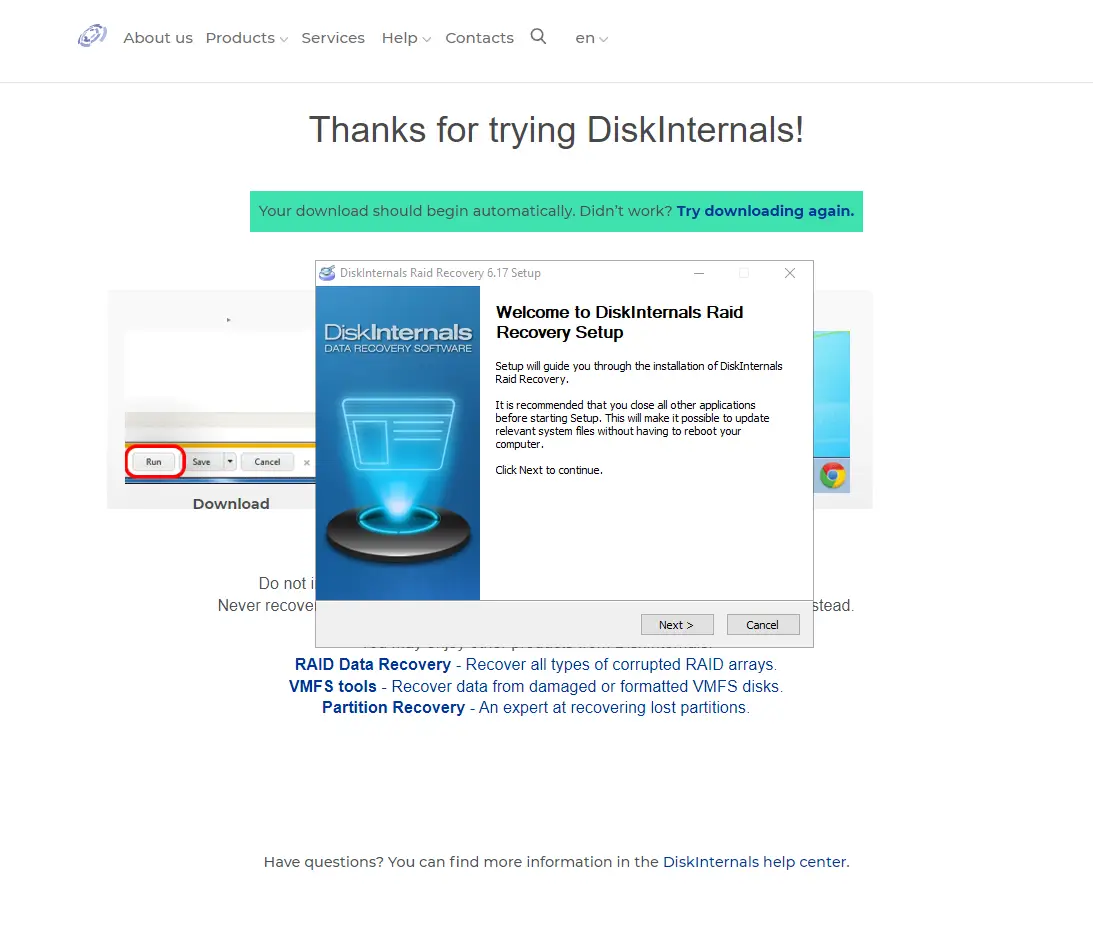
The step-by-step recovery wizard will make the process simple, clear and efficient.
To start download RAID Recovery and begin recovery process:
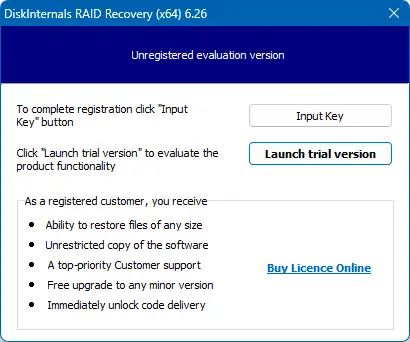
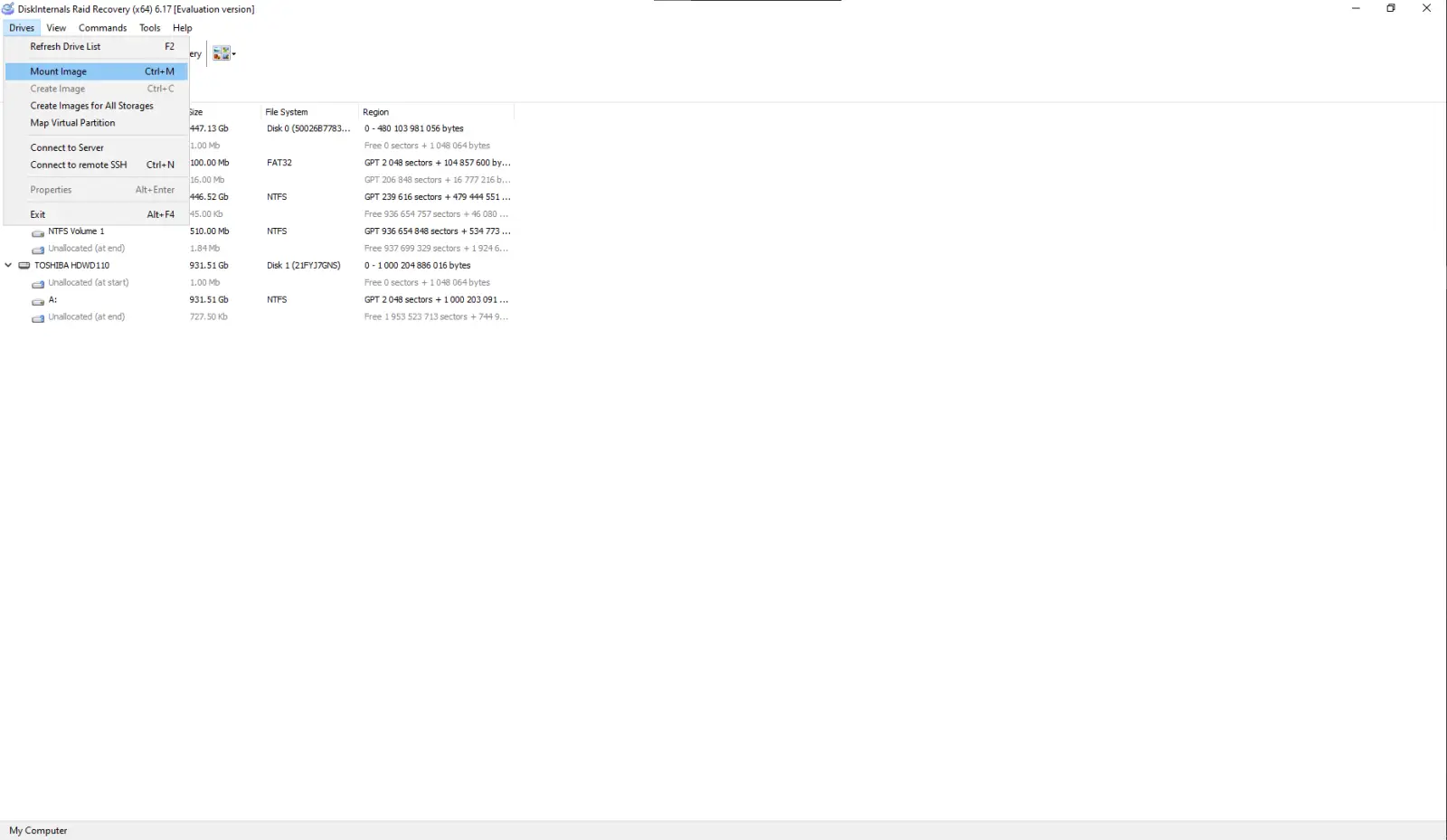
RAID Wizard will be automatically loaded. You may add additional disks image by clicks "Drives" - "Mount Image" or skip that step:
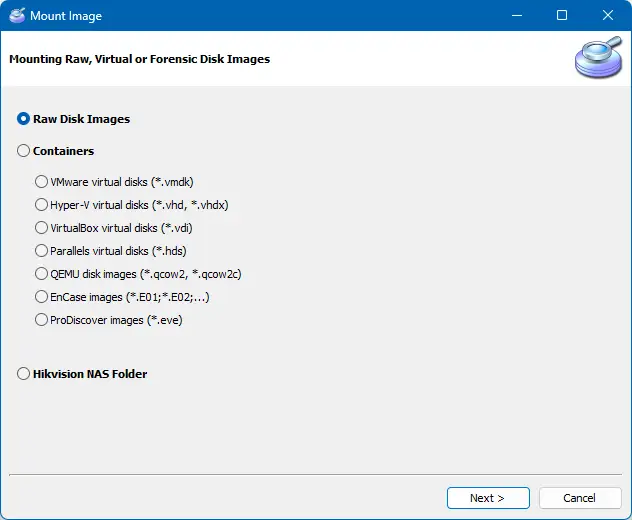
Run RAID Recovery Wizard
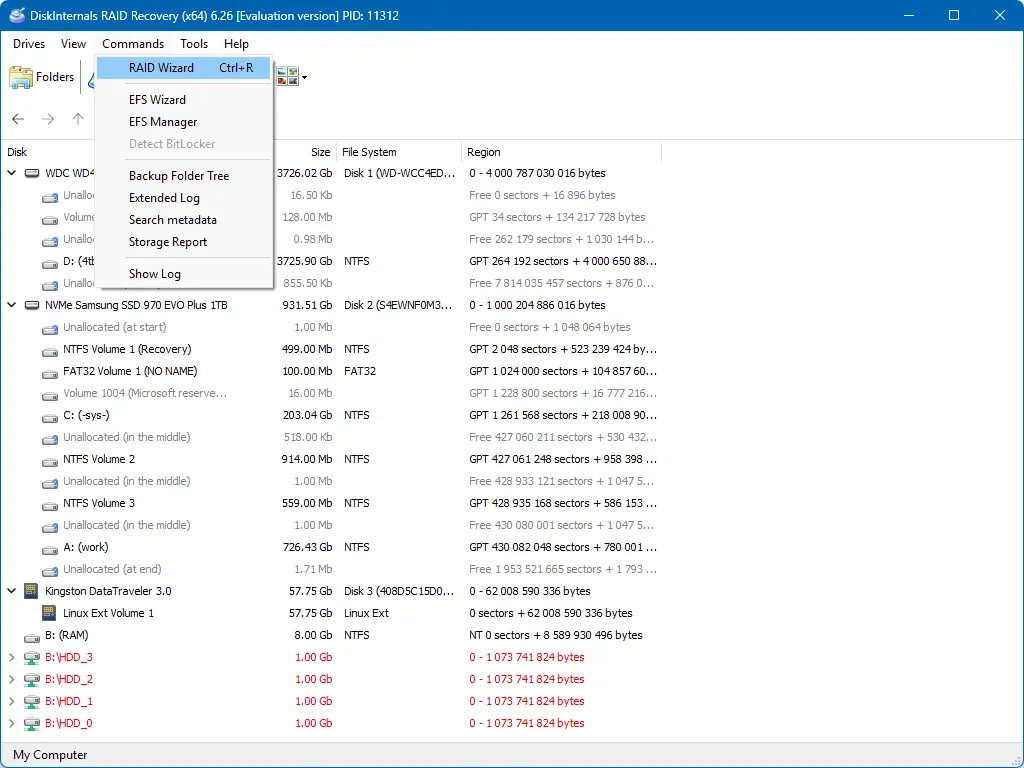
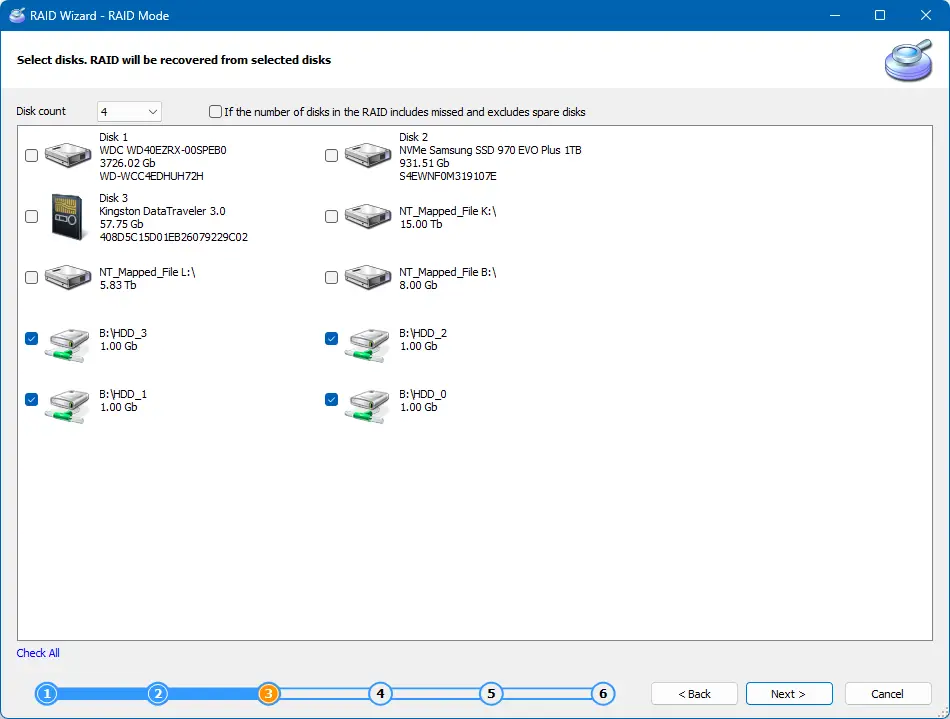
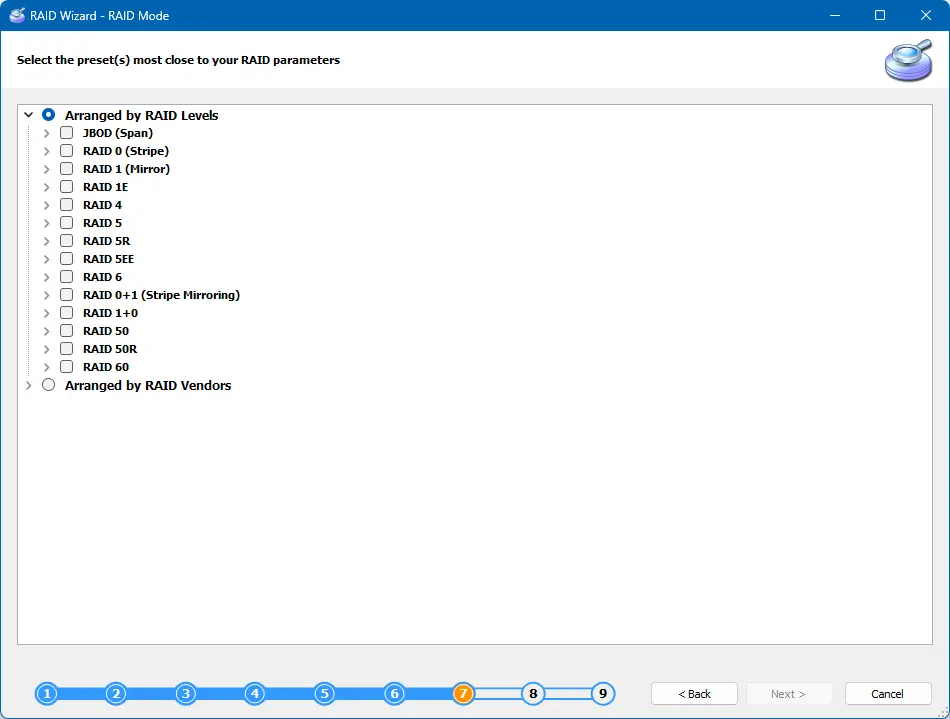
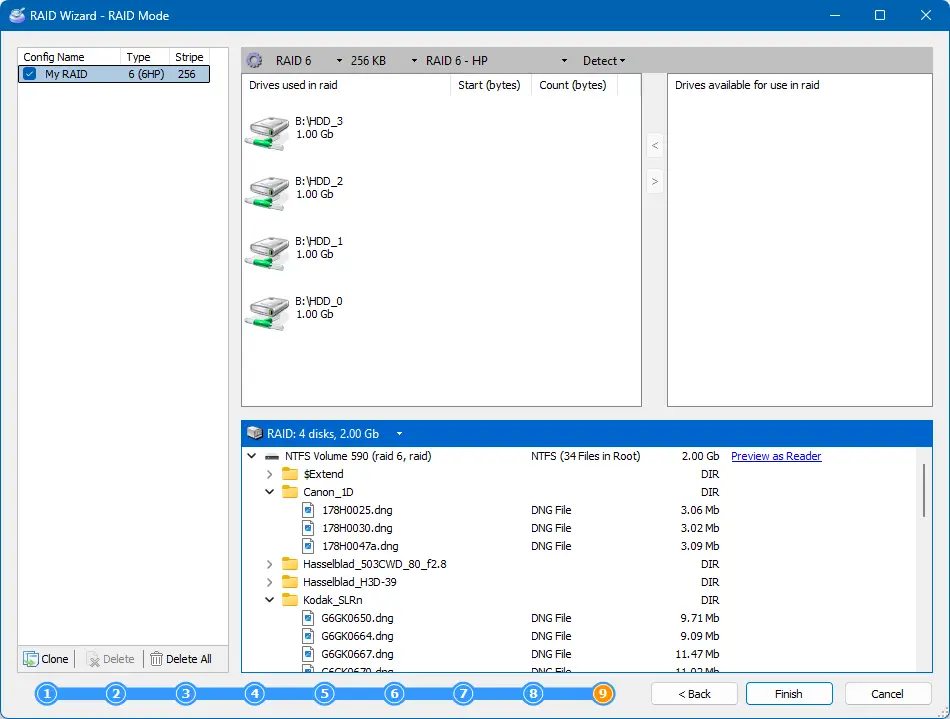
In the end of these steps you will get a reconstructed RAID, which can be opened. Recovered RAID Arrays are marked with red. Select the magic hat named "Wizard" and select the RAID you just reconstructed.
Choose the file system that was on your RAID. Disk scanning can take a while.
When the scan is complete, you are welcome to preview files.
Frequently Asked Questions
-
Yes, this is harmful to your RAID. RAID disk configuration is stored on the controller. Usually, the RAID's controller has an additional battery; and if there is no power issue and the battery is low, RAID configuration will be lost. If you need to recover data after a RAID failure, use RAID Recovery Software by DiskInternals.
-
This situation may lead to data loss. Using DiskInternals RAID Recovery, you can rebuild the damaged RAID disk and extract your data. If your RAID's controller is damaged and you need to recover data, use RAID Recovery Software by DiskInternals.
-
Using RAID Recovery, you can restore data from the formatted logical volume. If you need to recover data after RAID logical volume was formatted, use RAID Recovery Software by DiskInternals.
-
If you are facing such problems as an inaccessible RAID Volume, you can use RAID Recovery to open it.
-
In this case, disassemble RAID and attach every disk as separate. Restore the RAID array with DiskInternals RAID Recovery.
-
Disassemble the RAID and attach every disk separately. Restore the RAID array with DiskInternals RAID Recovery. RAID Recovery is an irreplaceable tool for hardware or software RAID repair.
-
If one of the RAID disks is dead, data still can be restored with RAID Recovery.
Related articles
- RAID Array for Video Editing: How to Choose
- How to set up RAID 1 on Windows 10 and Linux
- Configuring RAID 5: Step-by-Step Guide on How to Configure RAID 5 for Performance
- How to Rebuild RAID 5 Without Losing Your Data
- RAID 1 Recovery: all you can do yourself
- RAID 5 Data Recovery Step by Step
- RAID Recovery Services
- RAID Recovery Software
- RAID 4 Data Recovery: How to Perform It⠀
- RAID 0 vs RAID 1: Performance, Redundancy & Use Cases
- RAID 5 vs RAID 10 comparison: Which one is better for you?⠀
- How to set up RAID in Windows 10 in 2025
- RAID 5 VS RAID 6 - advantages and disadvantages
- The best NAS RAID: how to choose⠀
- HDD Raid Vs SSD Raid Storage Systems - How to move⠀
- NAS vs External Hard Drive: Comprehensive Guide to Choosing the Best Data Storage Solution
- RAID-1 vs RAID-5: Performance, Cost, and Data Protection Compared
- RAID 10 vs RAID 01: Is There Any Difference?
- RAID vs JBOD: performance and cost comparison⠀
- NAS vs SAN storage - Detailed Comparison⠀
- Perform RAID 50 Data Recovery Today!
- Basic Disks vs Dynamic: What is the Difference
- What Is a Hot Spare? Peculiarities of Usage
- Differences Between Software RAID and Hardware RAID
- How to check RAID status? 4 different methods!
- RAID Array Growing: How to Perform It
- How To Create RAID Arrays with mdadm on Ubuntu (22.04)
- How About RAID 1 Reliability?
- Can RAID array have snapshots?
- RAID Array Metadata: What Is Inside?
- RAID 5: How Big Should an Array Be?
- How Does RAID 5 on Windows 10 Work?
- What is FakeRAID?
- Which RAID is Better to Use for 4 Drives
- Hyper-V Manager - what is it?⠀
- Hyper-V: Generation 1 vs Generation 2
- Hyper-V Live Migration - what is it?⠀
- Hyper-V Snapshot Merge
- About Hyper-V clusters
- Hyper-V network adapters⠀
- Back up Active Directory Guide - Step-by-step Instructions⠀
- Effective Btrfs File Recovery: Complete Guide to Btrfs Data Recovery
- Make Sure Your Data is Safe While Using Microsoft Storage
- Set Up and Use Microsoft SQL Server Management Studio
- Guide: Linux Raid and Disk Data Safety
- Btrfs vs. EXT4: A Comprehensive Comparison of File Systems in Linux (2025)
- RAID Redundancy - best performance solutions⠀
- No hard drive detected or disk controller not supported in RAID
- Issue with the RAID after the BIOS update
- Using SSD in RAID Array
- ZFS Recovery software - How to recover deleted ZFS files
- Raid Recovery Qnap⠀
- RAID recovery software for Mac⠀
- How to Recover RAID Array Configuration
- How to Rebuild RAID Without Losing Data
- How to rebuild RAID 1 without losing data
- How to Rebuild RAID 0 Without Losing Data
- Difference and Comparison - RAID 1 and RAID 2
- Difference between RAID 2 and RAID 3
- Difference between RAID 4 and RAID 5
- What is Synology Hybrid RAID (SHR). How to Recover Data from Synology Hybrid RAID
- Recover Data from RAID on Linux
- RAID Foreign Disk: Causes, Solutions, and Best Practices
- Forensic RAID Recovery
- RAID Data Recovery evaluation. What is RAID data recovery?
- What Is a RAID Controller and What Are the Benefits of It?
- Recover Data from Broken/Failed RAID Set
- How to Clone RAID 0, 1, 5 Disk
- Raid Rebuild Vs. Raid Recovery
- RAID vs. backup - differences and benefits (RAID is not a Backup)
- How to Rebuild RAID array
- What is Synology Hybrid RAID? What is the difference between SHR and RAID Drives?
- Recover Data from RAID 5 on mdadm (Linux)
- RAID Rebuild Time: What is and How to Optimize It?
- RAID Disaster Data Recovery: Techniques and Strategies for Handling Catastrophic Events
- How to Repair a Failed RAID?
- How to Set Up RAID in Windows 11: A Step-by-Step Guide
- RAID 50 vs. RAID 60 – Key Differences
- How to Set Up and Configure RAID 10: Step-by-Step Guide
- What Is RAID 6? Definition, function
- RAID 10 vs RAID 6: Which Better?
- RAID 10: How Many Disks Are Needed and How to Set It Up
- How to recover data from a corrupted RAID?
- RAID 1 with 3 Drives: Everything You Need to Know
- NTFS RAID Recovery: Comprehensive Guide to Data Retrieval
- Comprehensive Guide to RAID in Cyber Security: Levels, Recovery, and Best Practices
- What is software RAID? - Comprehensive Guide
- Understanding RAID 0: Benefits, Risks, and Applications
- RAID 3 Explained: Benefits, Limitations, and Data Recovery Guide
- How Many Drives Are Needed for RAID 5? Minimum & Maximum Explained
- Understanding RAID Striping: A Comprehensive Guide to Disk Striping and Its Variants
- ZFS vs Btrfs vs RAID: Comprehensive Storage Comparison for Performance, Reliability, and Scalability
- How to Resize RAID Partitions: Step-by-Step Guide for RAID 1, 5, 6 & 10
- RAID 1 Minimum Drive Requirement: How Many Drives Do You Need?
- Bootable RAID Recovery Software: Complete Guide for RAID 0, 1, 5, 10 Recovery
- RAID Hard Drives Explained: What Is RAID for HDDs and External Drives
- RAID 5 Rebuild Failure Probability: Risks, Factors, and Solutions in 2025
- Understanding RAID 6 Performance: A Comprehensive Guide
- Recovering Data from RAID Drives: Step-by-Step Guide to RAID Recovery
- Adaptec RAID Recovery: Restore Data from Failed Arrays with DiskInternals RAID Recovery™
- SAN RAID Data Recovery: Recover RAID Arrays with Professional SAN Recovery Solutions
- What is a RAID? RAID Systems Explained & How to Recover RAID Arrays with Professional Tools
- Top 10 RAID Recovery Services: Best Solutions for Data Recovery
- RAID Server Data Recovery: Recover and Restore RAID Arrays Fast with Professional Tools
- RAID System Recovery: Essential Steps & Best Software for Safe Data and File Restoration
- What is RAID Connectivity? Essential Guide to RAID Array Setup
- How Many Drives for RAID 6?
- How to Read RAID Drives & Recover RAID Arrays on Windows: A Guide
- Synology RAID 5 Recovery: Recover Your RAID Array with Expert Tools and Tips
- X-RAID Recovery: Expert Guide to Netgear X-RAID and ReadyNAS Data Recovery
- SCSI RAID Recovery Software: Effective Solutions for SCSI RAID Data Recovery
- RAID Data Recovery for Deleted Arrays: Recover RAID Array Safely & Effectively
- What is RAID in Linux? Learn About Software RAID & Recover RAID Arrays Easily
- Change log for RAID Recovery™
- Intel Matrix RAID Recovery: Restore RAID 0, 1, 5, 10 with Reliable Solutions
- ZFS RAID Expansion: How to Expand RAIDZ and ZFS Pools Safely
- RAID 6 Drive Failure Tolerance: How Many Drives Can Fail?
- Windows Storage Spaces vs RAID: Performance, Speed, and Data Protection Comparison
- RAID 2 Array Explained: What Is RAID Level 2, Setup, and Performance Comparison
- RAID 5 RAID 6 RAID 10 - Key Differences and Performance Comparison
- How to Fix Degraded RAID 1: Step-by-Step Guide to Restore RAID 1 Degraded Arrays
- RAID 5 vs RAID 0+1: Key Differences Explained
- Why RAID 1 Is Not a Good Substitute for a Backup
- How to Check Which RAID Is Configured: A Complete Guide for Windows and Linux
- RAID 50 vs. RAID 6 – Key Differences
- Cannot Format Old RAID Drive? Effective RAID Data Recovery Solutions
- RAID 6 with 5 Drives: Configuration, Performance, and Data Protection
- Best RAID for 6 Disks: Compare RAID 0, 5, 6, 10, 50 & 60 for Performance & Redundancy
- RAID 6 with 8 Drives: Configuration, Failures, and Performance Explained
- RAID 6 with 6 Drives: Performance, Redundancy, and Best Use Cases
- RAID 5 with 5 Drives: Configuration, Performance & Recovery | RAID 5 5 Drives Guide
- 15 Best External Hard Drives for RAID in 2026
- Dell RAID 1 Recovery: How to Recover Data from RAID 1 on Dell Servers Safely
- What Is RAID 1E? Performance RAID 10 1E vs RAID-1E Guide for Power Users
- RAID 1E vs RAID 5: Performance, Capacity and Failure Risk Compared
- RAID 1 Speeds: Read, Write & Disk Performance | Speed Up RAID 1 Guide
- XFS RAID Recovery Guide & Best XFS RAID Recovery Software
- RAID Data Recovery Cost: Affordable Solutions for RAID 0, RAID 1, RAID 5, and RAID 10 Failures
- NAS as a File Server: NAS vs. File Server Comparison for Storage and Sharing
- QNAP RAID 5 Recovery Failed? Safe Data Recovery Steps for NAS Users
- ReiserFS RAID Recovery: How to Restore Data from Failed RAID Arrays
- RAID Calculator For Geeks – Estimate Usable Space & Drive Size
- RAID 0 vs RAID 1 vs RAID 5 vs RAID 10 — Performance, Capacity & Recovery
- RAID 1 vs RAID 5 vs RAID 10 Performance Management, Speed & Capacity Guide
- ZFS Minimum Drives — How Many Disks You Need for RAIDZ1, RAIDZ2, RAIDZ3
- ZFS vs mdadm RAID — Why choose ZFS instead of RAID
- Encrypting RAID Arrays — RAID with Full Disk Encryption & Secure Setup
- Best RAID for OLTP: RAID Configuration for OLTP Workloads & Transactional Databases
- Best RAID for MySQL: RAID Configuration & RAID Setup for MySQL Databases
- Best RAID for NVMeoF: NVMe RAID Configuration & NVMe over Fabrics RAID Setup
- Fault Tolerance in NVMe-oF RAID — Rebuild Time, Data Protection & Redundancy
- RAID 0 vs Single Drive — SSD, NVMe & HDD Comparison (Performance vs Risk)
- RAID 0 vs Single Drive Reliability — Failure Risk, SSD Comparison & Recovery
- RAID 0 vs. SSD Performance: PCIe 4.0, PCIe 5.0 Speed Compared
- Does RAID 0 Increase FPS? — RAID 0 vs Single Drive FPS Guide
- RAID 5 Two-Disk Failure Recovery: Parity Recovery Beyond Tolerance
- Best RAID Controller Guide: Hardware RAID Cards Compared for Servers and SSDs
- RAID Controller for ESXi: VMware ESXi RAID Controller Recommendations
- RAID Controller for Linux: Best Linux-Compatible Hardware RAID Controllers
- SATA RAID Controller for ESXi: VMware ESXi Compatible SATA RAID Options
- RAID Calculator Online – Usable Space & Disk Size Calculator for RAID
- NAS Data Recovery Software & Tools for RAID Recovery
- Features
- RAID 0 Data Recovery
- RAID 10 Recovery
- RAID 6 Data Recovery
- RAID 0, 1, 3, 5, 10 data recovery software for Windows 10
- RAID Reconstructor on Broken RAID Arrays
- The Truth about Recovering RAID 5 with 2 Failed Disks
- SSD benefits for RAID array
- RAID 0 failure - How to Fix Failed Raid 0 Array
- Benefits of RAID arrays - what are the advantages of RAID?⠀
- RAID 3 vs RAID 5: which one would you prefer?
- What are RAID 01, RAID 1+0 and RAID 0+1⠀
- Mdadm RAID 1 not activating a spare disk Linux⠀
- What to do if RAID array doesn't reassemble after reboot
- RAID levels 0, 1, 5, 6, and 10
- Minimum disks for RAID 10⠀
- RAID Consistency Check: Ensure Data Integrity & Recover Lost Data
- Global Hot Spare vs Dedicated Hot Spare: Find the Difference
- What Are Some Common Symptoms of RAID Array Failures?⠀
- RAID status degraded - fix it⠀
- RAID 50 vs RAID 10 - What is the difference
- How to downsize hardware RAID partition and protect data
- What is RAID-Z? Its Difference Between RAID-Z2 vs RAID-Z3
- RAID 6: Replace Two Dead Drives
- Do You Need to Defragment RAID?
- How to Recover RAID partition - step by step guide⠀
- Does chunk size influence the speed of RAID?
- RAID 0, 5, 6, 10 Performance
- RAID Configuration Explained: Types, Setup, and Best Practices
- What Is RAID Redundancy? | RAID Redundancy Explained for Data Protection
- Perform Hyper-V Data Recovery Today
- How to Install Hyper-V in Your Environment in 2025
- Hyper-V Virtual Machine Replication⠀
- Difference Between Type 1 and Type 2 Hypervisor?⠀
- Hyper-V Server Core installation vs GUI - let's compare⠀
- How to Run Linux on a Hyper-V VM in 2025
- What is nutanix ahv?⠀
- What is System Center Virtual Machine Manager⠀
- What is Microsoft SQL Server and How Can You Use it Safely?
- Microsoft SQL Server Express Guide
- Use Microsoft Windows Server Safely
- What to do if you get Microsoft SQL Server error 18456?
- Microsoft Storage Spaces
- Xserve RAID data safety
- Apple RAID Card Data Recovery
- Here is Everything You Need to Know About RAID-Z Technology
- What is JBOD?
- Is it worth using RAID 5E/5EE?
- Let's compare: Synology vs QNAP
- Here is How to Backup RAID in 2025
- Synology RAID Set That Is Broken or Crashed? RAID data recovery
- Here is How to add drive to RAID 5 in 2025
- Best NAS hard drive recovery in 2026 | Top RAID network-attached storage Hard Drives
- SQL Server Database in Recovery Pending - How to fix it (2025)
- RAID Hard Disk Data Recovery Software (2025)
- Best RAID Data Recovery Software for Linux
- Difference between RAID 3 and RAID 4
- Buffalo Data Recovery
- Rapid RAID Recovery Software
- RAID Server Data Recovery
- How to Recover RAID Crash Data
- Raid Drive Array Recovery
- How to Setup Raid 0 Windows 10 (11)?
- How Many Disks Can Fail in RAID 5?
- What is RAID 5? Overview and Key Functions
- How to Remove software RAID device using mdadm
- AHCI vs. RAID: Pros, Cons & Differences
- Recover Data from RAID 1 on mdadm (Linux)
- Difference & Comparison: RAID vs. non-RAID System
- Ultimate Guide to RAID Data Recovery: Tips & Techniques
- Guide to Recovering a Failed RAID Array | Step-by-Step Recovery Process
- Open Source RAID Recovery Software Explained and Comparison
- HDD RAID vs SSD RAID and Combining Both: Everything You Need to Know
- RAID 0: How Many Drives Are Needed?
- RAID 1: How Many Drives Are Needed for Data Redundancy?
- What is RAID 1? RAID Mirroring
- Recovering RAID 5 After Controller Failure
- What is Xserve RAID? Comprehensive Guide and Overview
- Complete Guide to RAID Controller Failure and Recovery: Expert Tips
- Understanding Hardware RAID: Comprehensive Guide to RAID Levels and Benefits
- Understanding RAID 60: Architecture, Advantages, and Data Recovery
- RAID 10: How Many Drives Can Fail? | Comprehensive Guide to Failure Tolerance
- ZFS RAID Setup Guide: Configuration, Management & Expansion
- A Comprehensive Review of RAID Recovery Software: Choosing the Right Tool
- DiskInternals RAID Recovery vs EaseUS Data Recovery Wizard | Comprehensive Comparison
- Comprehensive Guide to ZFS RAID Levels, Types, and Configurations
- ZFS vs RAID: Comprehensive Comparison of Performance, Reliability, and Features
- RAID Drives Explained: Learn How RAID Storage Enhances Performance
- HP RAID Recovery Tool | How to Recover Data with DiskInternals RAID Recovery Software
- Recover Striped RAID: Professional RAID 0 Data Recovery with DiskInternals RAID Recovery™
- BTRFS Restore File: How to Undelete Files and Restore Deleted Data Easily
- Recover Data from a RAID Array: Effective Solutions for Fast and Secure Data Retrieval
- Windows 7 RAID Recovery: How to Recover Data from RAID 1, RAID 5, and RAID 10 Arrays
- What is RAID Data Recovery? | Recover RAID Arrays with RAID Recovery Software
- What is a RAID Volume? Understanding RAID Volumes and Recovery Solutions
- Best RAID Software for Mac | Top Free & Paid RAID Tools for macOS 2026
- RAID Recovery Volume: Effective RAID Array Recovery Solutions for Data Loss Prevention
- Intel RAID 0 Recovery & RAID 1 Recovery: Solutions for Data Loss & Recovery Tools
- Optimize RAID for Redundancy and Performance - Expert Guide
- RAID 0 vs RAID 5: Speed, Performance & Key Differences (2026)
- Synology RAID 1 Recovery: Recover RAID Array with Trusted Tools and Expert Solutions
- Interim Recovery RAID 5: Expert Guide to Data Recovery and RAID Array Repair
- MDADM RAID 0 Recovery: Expert Guide to Fix and Recover Your RAID Array
- RAID Level 4: What Is RAID 4, How It Works
- RAID Restorer – Recover Data from Failed RAID Arrays with Reliable Software
- ZFS RAID with Different Size Drives – Setup, Limitations, and Best Practices
- RAID 0, 1, 5, 10 Explained: Performance, Redundancy & Best RAID Configurations
- How to Recover Data from a Broken RAID 1 Set – Step-by-Step Guide
- RAID 50: Drive Failure Tolerance and Data Recovery Solutions
- RAID 5 with 3 Disks: Configuration, Benefits, and Performance Insights
- How to Create RAID 5 with 6 Disks: Complete Setup Guide and Performance Tips
- RAID 6 Double Parity Calculation Explained – Data Protection Insights
- How to Add a Disk to mdadm RAID 5: Step-by-Step Guide
- RAID 0 vs RAID 10 and RAID 10 vs RAID 0 Performance Comparison
- RAID 50 vs. RAID 5 – Performance, Speed, and Data Protection Comparison
- Configure RAID on Ubuntu – Step-by-Step Guide for RAID 0, 1, 5, and 10
- RAID 0 vs. JBOD – Key Differences, Performance, and Speed Comparison
- RAID Array Rebuild: How to Rebuild a RAID Array Safely and Recover Lost Data
- Recover Data from Old RAID Drives | Best Methods & Software for RAID Recovery
- Dell RAID 5 Recovery - Safely and Fast
- RAID 1E vs RAID 10: Performance, Capacity, Cost & Failure Risk Guide
- Ext3 RAID Recovery Guide - Data Recovery RAID Ext3
- ASUS RAID Recovery Guide - Fix Failed ASUS RAID
- ZFS Recovery Tools — Data Recovery ZFS Guide & Best Software
- RAIDZ1 vs RAID 5 — Performance, Integrity & Recovery Comparison
- ZFS Mirror vs RAIDZ — Performance, Capacity & Recovery Guide
- RAID Degraded: What to Do | Warning Fixes and Steps After a Failed Rebuild
- RAID 7 — What It Is? Origins, Risks & Recovery Options
- RAID in Cloud Storage Systems — SDS, Virtual RAID & Erasure Coding Guide
- RAID 10 with 8 Disks — Configuration, Performance, Rebuilds & Best Practices
- Is RAID 0 Worth It in 2026? Risk, Performance, SSD & NVMe Guidance
- Best Practices for RAID over NVMe-oF — Tuning, Monitoring & DR
- RAID 0 for Gaming — Is RAID 0 Good for Gaming? Performance & Risk Guide
- RAID 0 for 4K Editing — Is RAID 0 Good for 4K Video Editing?
- RAID 0 for Large File Workloads: Scratch Disks, NVMe, When It Makes Sense
- Is RAID 0 Obsolete? RAID 0 with SSD and NVMe — Still Worth It?
- RAID 0 Redundancy vs No Redundancy — Does RAID 0 Have Redundancy?
- RAID 5 Interrupted Rebuild Recovery: Fix Stopped or Aborted Rebuilds
- RAID 0 Failure Probability with N Disks Explained
- RAID 1 Corrupted Mirror Recovery: How to Recover a Damaged RAID 1 Mirror
- When RAID 0 Is Acceptable: Use Cases, Risks, and When You Should Use RAID 0
- RAID Best Practices for VMware: Best RAID Configuration for VMware ESXi
- RAID 0 Backed by Versioned Backup: Is RAID 0 Safe with Versioned Backups?
- RAID 10 Best for VMware: Why RAID 10 Is the Recommended RAID for ESXi
- Best PCIe RAID Controller: Top Hardware PCI Express RAID Cards Compared
- SAS RAID Controller for VMware ESXi: Best Hardware RAID Options
- Best FREE RAID Data Recovery Software (2026)
- DiskInternals RAID Recovery vs ReclaiMe: Comprehensive RAID Recovery Solutions Compared
data recovery from RAID?